Setting any MP3 as your iPhone ringtone is now easier than ever with iOS 26. In this guide, we'll show you how to set any MP3 as your iPhone ringtone in just a few simple steps, a process that was once a headache for Apple users but is now incredibly straightforward.
Why Setting MP3 Ringtones Used to Be Difficult
For years, iPhone users had to jump through hoops to set custom ringtones. The process involved syncing with iTunes, converting files to the correct format, and ensuring they were under 30 seconds. Many users found it frustrating and time-consuming.
Find Original Home Decor sparking conversation at Grand Goldman Shop.

With iOS 26, Apple has simplified the process dramatically. Now, you can set any MP3 file as your ringtone directly from your iPhone, without needing a computer or additional software.
Requirements for Setting an MP3 as a Ringtone
Before you begin, make sure you meet these three simple requirements:
- iPhone updated to iOS 26: This feature is only available on devices running iOS 26 or later.
- MP3 file saved on your iPhone: The file must be stored locally, accessible via the Files app.
- MP3 duration under 30 seconds: iOS enforces a 30-second limit for ringtones. If your MP3 is longer, you'll need to trim it using a tool like mp3cut.net.
Once you have these prerequisites, you're ready to proceed.
Step-by-Step Guide to Set an MP3 as Ringtone
Step 1: Locate the MP3 in the Files App
Open the Files app on your iPhone and navigate to the folder where your MP3 file is saved. This could be in iCloud Drive, On My iPhone, or another location.
Step 2: Access the Share Menu
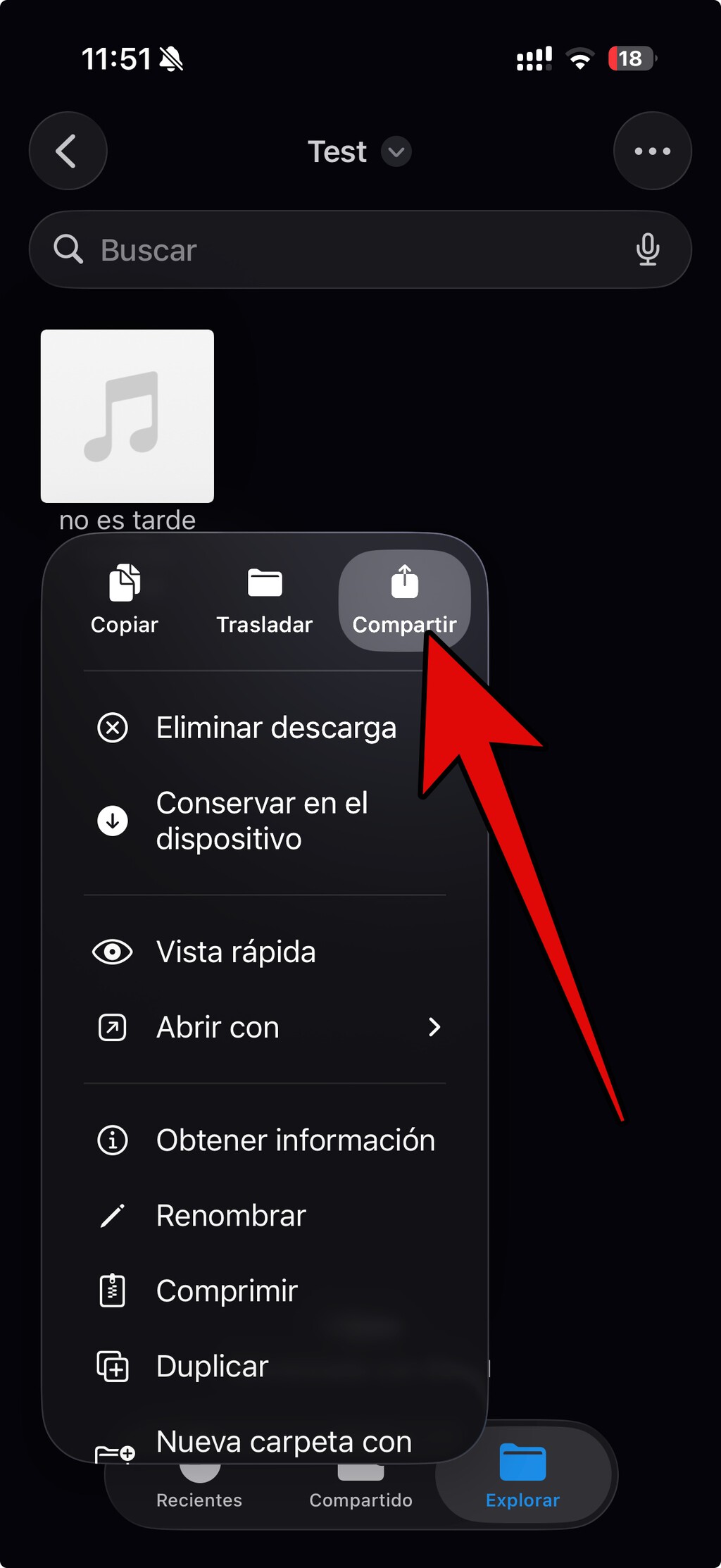
Press and hold the MP3 file until a pop-up menu appears. Tap on the Share option at the top of the menu.
Step 3: Find the 'Use as Ringtone' Option
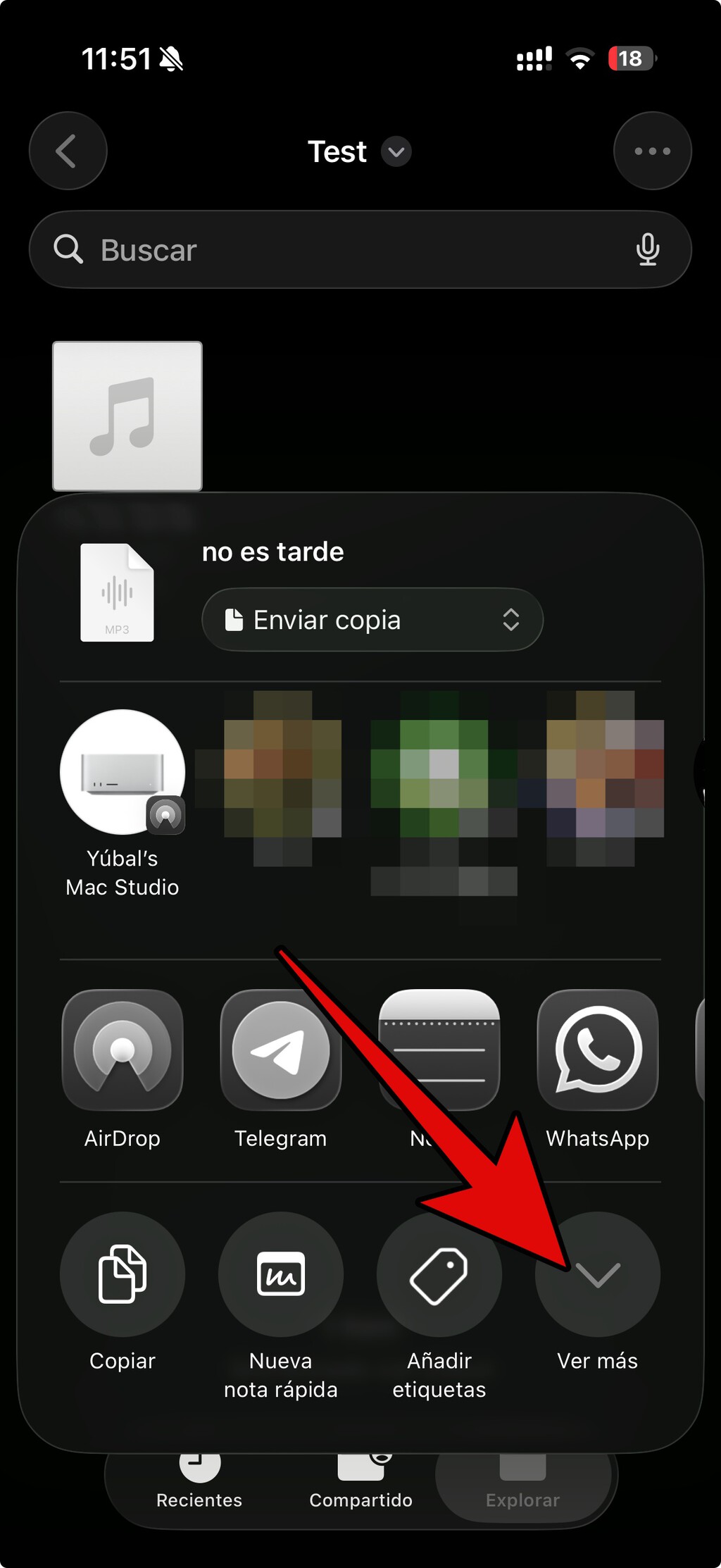
The share sheet will display common sharing options like contacts and apps. Tap on See More to reveal additional actions.
Step 4: Set as Ringtone
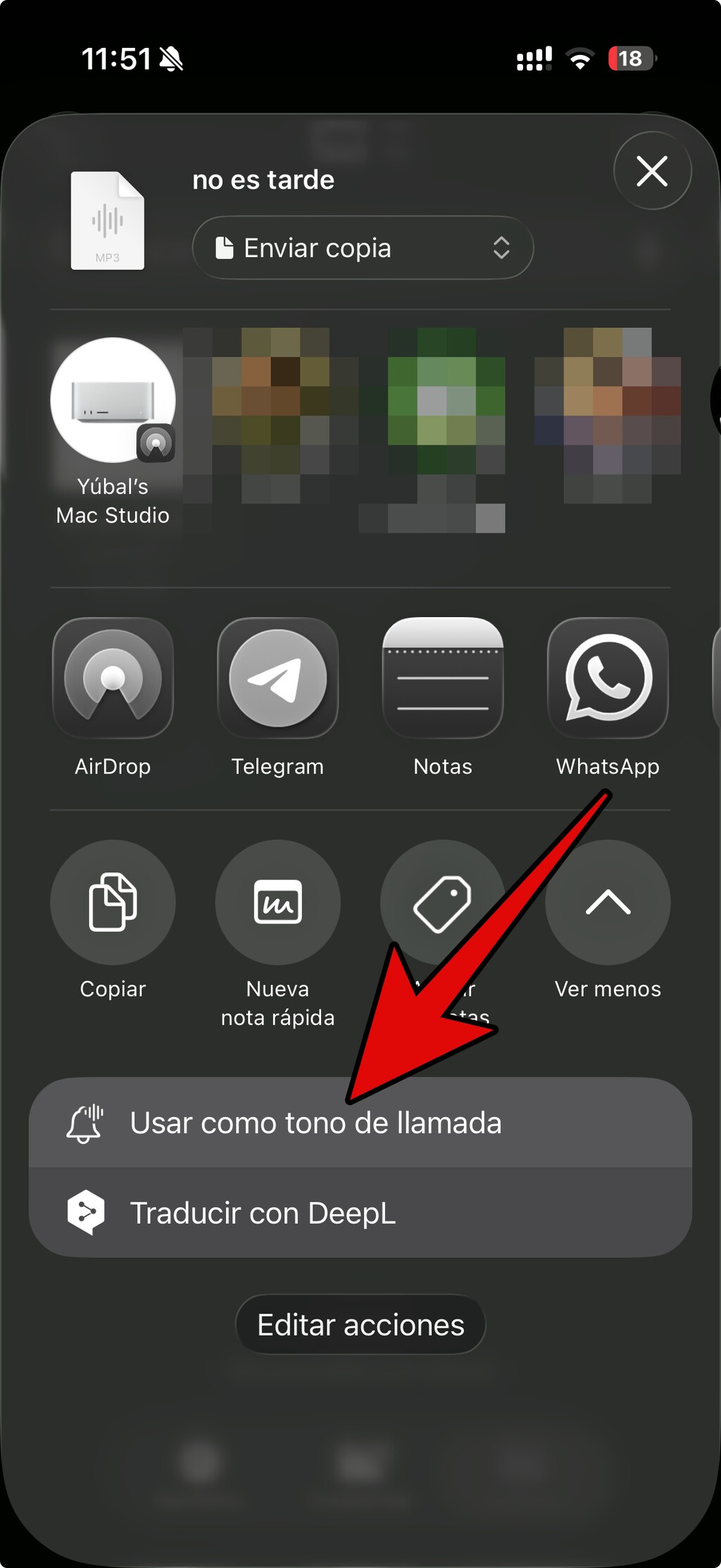
Scroll through the list of actions and tap Use as Ringtone. That's it! Your MP3 will now be set as your iPhone ringtone. The background to this story is set out in Apple iOS 26.6 Fixes 78 Security Flaws: What You Need to Know. A related thread runs through The release of iOS 26 has started in Greece!. Earlier coverage in Trending: latest articles shows how the argument developed.
Important: 30-Second Limit
iOS enforces a strict 30-second limit for ringtones. If your MP3 is longer, you'll receive an error message saying the file is too long. To fix this, you can use a free online tool like mp3cut.net to trim your MP3 to under 30 seconds before setting it as a ringtone. A closer look at the same subject appears in iOS 27 Release Date, New Features, and iPhone Compatibility. Anyone following the wider picture can start with MediaMarkt Outlet: Rare iPhone Deals You Won't Find Elsewhere. The same theme surfaces in WhatsApp Green Dot Status: What It Is and How to Hide, which takes a different angle.
Comparison of Ringtone Setting Methods
| Method | Requirements | Ease of Use | Time Needed |
|---|---|---|---|
| iOS 26 Files App | iOS 26, MP3 under 30 sec | Very easy | Under 1 minute |
| iTunes Sync (older iOS) | Computer, iTunes, conversion | Difficult | 5-10 minutes |
| Third-party apps | App installation, sometimes paid | Moderate | 2-5 minutes |
As you can see, the new method is by far the simplest and quickest. Context on how this played out before sits in AppleCare+ and Solar Eclipse iPhone Damage: What the Fine Print Says. A companion piece, How to Set Any MP3 as Your iPhone Ringtone Easily, approaches the same subject from another angle.
Frequently Asked Questions
Can I use any MP3 file as a ringtone?
Yes, as long as the MP3 is under 30 seconds and stored on your iPhone. iOS 26 supports any MP3 file that meets these criteria.
What if my MP3 is longer than 30 seconds?
You'll need to trim it. Use a free online tool like mp3cut.net to cut the file to 30 seconds or less, then save it to your iPhone and follow the steps above.
Does this work on older iOS versions?
No, this feature requires iOS 26 or later. On older versions, you'll need to use iTunes or third-party apps to set custom ringtones.
Can I set different ringtones for different contacts?
Yes, after setting an MP3 as a ringtone, you can assign it to specific contacts in the Contacts app. Go to the contact, tap Edit, and choose the ringtone.
With iOS 26, setting a custom MP3 ringtone is a breeze. Just remember the 30-second limit and ensure your file is saved locally. Enjoy your personalized ringtone!