White noise on Mac is a built-in feature that can help you concentrate, and it's surprisingly easy to access once you know where to look. For years, many of us have relied on music while working, but recently, the shift toward white noise for focus has gained traction. Instead of looping a YouTube video, macOS offers a selection of background sounds that are integrated into the system, albeit a bit hidden.
If you have a Mac running macOS 13 Ventura or later, you can access a variety of background sounds. These are designed to mask distracting noises and create a consistent auditory environment, which can be particularly useful for deep work. The feature includes 16 different sounds, ranging from nature sounds like ocean, rain, and fire, to transportation sounds like airplane, boat, and train. There are also pure noise colors: white, pink, and brown noise.
Find Original Home Decor sparking conversation at Grand Goldman Shop.

How to Access Background Sounds on macOS
To find these sounds, you need to navigate to System Settings. The exact path may vary slightly depending on your macOS version, but generally, you'll find them under Accessibility > Audio. From there, you can enable Background Sounds and choose from the list. You can also add a shortcut to the menu bar or Control Center for quick access.
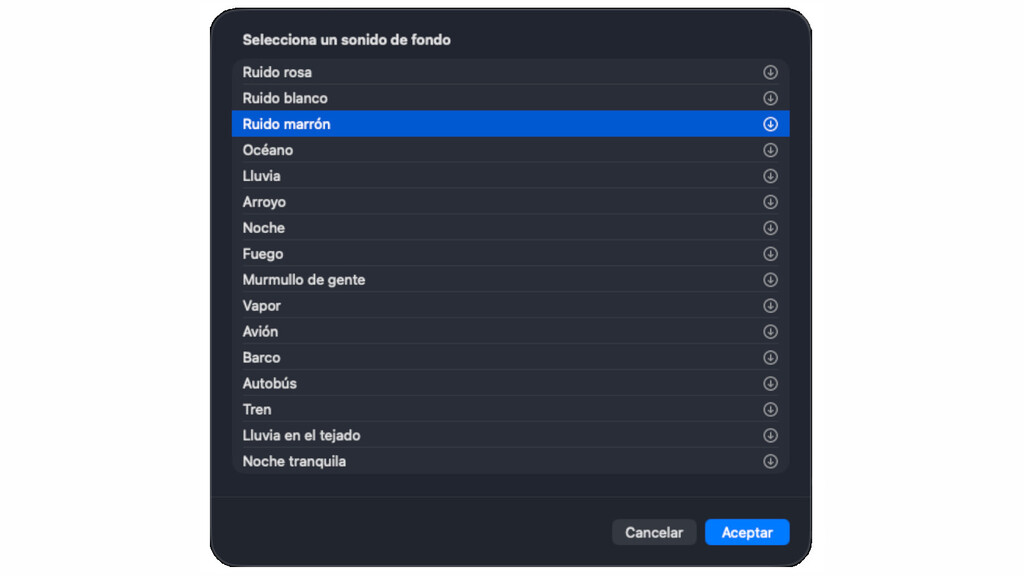
Adding the sound to the menu bar or Control Center allows you to toggle it on and off with a single click. However, note that you can only play one sound at a time. If you want to switch to a different sound, you'll need to go back through the settings. This limitation is minor considering the convenience of having instant access to your preferred focus sound.
Why White Noise Helps Focus
White noise works by masking sudden changes in background noise, making it easier to concentrate. For many, it's more effective than music because it doesn't engage the brain's language or emotional processing. Brown noise, in particular, has a deeper, rumbling quality that many find soothing and less harsh than white noise.
The built-in macOS sounds are convenient because they don't require an internet connection or a separate app. They also integrate with the system, so you can control them alongside other audio settings. This seamless integration makes it easy to incorporate into your daily routine, whether you're working in a noisy office or a quiet home.
Comparison of Background Sound Types
Here's a quick comparison of the different categories of background sounds available on macOS:
| Sound Category | Examples | Best For |
|---|---|---|
| Nature | Ocean, Rain, Fire | Relaxation, stress reduction |
| Transportation | Airplane, Boat, Train | Familiar ambient noise, travel-like environment |
| Noise Colors | White, Pink, Brown | Focus, masking distractions |
Each category serves different purposes. Nature sounds are great for unwinding, while noise colors are more suited for concentration. Brown noise, for instance, is often preferred by those who find white noise too sharp.
Key Takeaways for Using Background Sounds
- macOS 13 Ventura and later include built-in background sounds.
- Access them via System Settings > Accessibility > Audio.
- Add to menu bar or Control Center for one-click activation.
- Choose from 16 sounds, including white, pink, and brown noise.
- Only one sound can play at a time; switch via settings.
These sounds are a free and convenient way to improve focus without additional software. Whether you're a student, professional, or anyone needing to concentrate, this feature is worth exploring. The background to this story is set out in Language Learning: Focus on Sounds for Faster Mastery. A related thread runs through How to Watch YouTube Without Ads and in Background for Free. Earlier coverage in Critical macOS Flaw Allows Passwordless Access and Is Actively Exploited shows how the argument developed.
How to Make the Most of macOS Background Sounds
To get started, simply enable the feature and experiment with different sounds to see which one helps you focus best. You might find that brown noise works well for deep work, while nature sounds are better for creative tasks. Adjust the volume to a level that masks distractions without being overwhelming. A closer look at the same subject appears in Ariwa Sounds Review: Mad Professor's Dub Classics Reissued. Anyone following the wider picture can start with Red Light and White Noise for Sleep: What Science Really Says. The same theme surfaces in Burnham’s Ukraine Gambit Signals Shift to Domestic Focus, which takes a different angle.
If you frequently switch between sounds, you might want to keep the settings window open or create a shortcut. Although you can only play one sound at a time, the quick access from Control Center makes it easy to toggle on and off as needed. This flexibility allows you to adapt your auditory environment to different tasks throughout the day. Context on how this played out before sits in Distraction-Free Keyboards: The Booming Business of Focus. A companion piece, Fake Meetings: The New Workplace Hack for Focus Time, approaches the same subject from another angle.
FAQ
What macOS version do I need for background sounds?
You need macOS 13 Ventura or later to access the built-in background sounds feature.
Can I play multiple background sounds at once?
No, macOS only allows one background sound to play at a time. You can switch sounds by going back to the settings.
What is the difference between white, pink, and brown noise?
White noise has equal energy across all frequencies, pink noise has more energy at lower frequencies, and brown noise has even more emphasis on low frequencies, sounding deeper.
How do I add background sounds to the menu bar?
In the Background Sounds settings, you can enable the option to show in menu bar or Control Center for quick access.